
AI Photo Editing Fails: Common Mistakes and How to Fix Them
That stunning AI edit you spent 20 minutes prompting just came out with six fingers and a warped background — again.
If you've ever felt the frustration of watching AI butcher what should have been a simple photo edit, you're not alone. AI photo editing has revolutionized how we enhance and transform images, but even the most advanced tools in 2026 still have their quirks. The good news? Most of these failures are predictable — and completely fixable.
Whether you're removing unwanted objects, restoring old photos, or creating artistic compositions, understanding the common pitfalls will save you hours of frustration. Let's break down the most frequent AI photo editing fails and, more importantly, how to fix them.
Why AI Photo Editing Still Makes Mistakes
AI image generators and editors have come a remarkably long way. Tools like DALL-E, Midjourney, and dedicated photo editing apps can now produce photorealistic results that would have been impossible just a few years ago. But they're still pattern-matching systems at their core — and patterns have blind spots.
"I'm confused how AI art can look so amazing and realistic, but also have super obvious mistakes. Like the shading, colors, and details are perfect, but then it gives someone an extra arm."— Reddit user in r/ask
The truth is, AI models are trained on millions of images, but they don't truly "understand" what they're creating. They're predicting what pixels should come next based on statistical patterns. When those patterns break down — complex overlapping elements, unusual angles, or specific details — that's when things go sideways.
The 7 Most Common AI Photo Editing Fails
1. The Extra Limbs Problem
Nothing ruins a perfectly good AI edit faster than noticing the person now has three hands. AI struggles with complex human anatomy, especially when bodies overlap or limbs extend in unusual directions.
The fix: Keep the number of people in your edit minimal. When you do include multiple people, ensure they're clearly separated with distinct poses. Many modern AI editors now offer regeneration tools that let you fix specific areas without redoing the entire edit.
2. Warped Backgrounds and Bent Lines
That straight fence suddenly curves. The building's windows are different sizes. Architecture that should be rigid becomes wavy and dreamlike — but not in a good way.
The fix: When working with structural elements, use AI tools that offer edge detection or line preservation. Better yet, select objects more carefully and use specialized object removal tools rather than general-purpose AI generators.
3. Uncanny Valley Faces
The eyes are slightly too far apart. The smile is frozen somewhere between happy and terrified. Facial expressions are one of AI's toughest challenges because we humans are incredibly sensitive to even tiny facial anomalies.
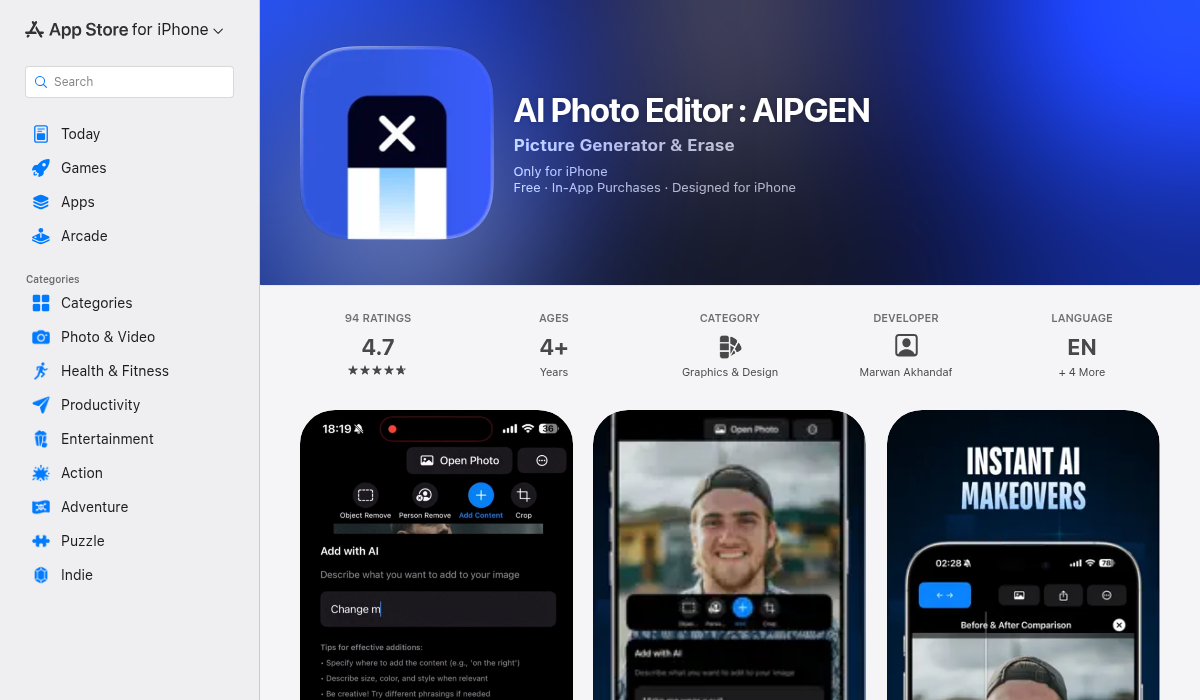
The fix: Use apps with dedicated face detection that preserves natural expressions. Some tools, like AIPGEN, use separate AI models for faces and backgrounds, reducing the chance of facial distortion during edits.
4. Text That Looks Like Alien Language
Asked AI to add text to your image? You might get something that looks vaguely like letters but reads like an ancient prophecy no one can decipher. AI generators notoriously struggle with text rendering.
"A second glance or quick zoom-in shows nonsensical characters printed on the cookbook, and the book itself seems to have two spines and three sections."— CNET, on AI image generation errors
The fix: Don't rely on AI to generate text. Generate your image without text, then add typography afterward using dedicated tools. Most photo editing apps include text overlay features that give you precise control.
5. Missing or Duplicated Objects
You asked AI to remove one person from the group photo. It removed two. Or it left a ghostly shadow where the person used to be. Or somehow duplicated someone else's head onto another body.
The fix: Use precise selection tools rather than automatic detection. Apps with manual object selection give you control over exactly what gets removed or kept. The before/after slider feature in many apps helps you catch these issues before saving.
6. Inconsistent Lighting and Shadows
The added element is lit from the left, but the original photo's light source is clearly from the right. Shadows that don't match. Elements that look pasted on rather than naturally integrated.
The fix: Specify lighting in your prompts when possible. When using object addition tools, choose elements that match your photo's lighting conditions. Some AI editors now include lighting adjustment features specifically for this purpose.
7. Color Bleeding and Artifacts
The red from the removed object bled into the surrounding area. Strange patches of color appear where the AI tried to fill gaps. Pixelated edges around edited areas.
The fix: Quality AI editors use content-aware fill that analyzes surrounding pixels for seamless blending. If you're seeing artifacts, try a smaller selection area or use the editor's cleanup tools for post-processing.
How Modern Apps Are Solving These Problems
The best AI photo editors in 2026 have built-in solutions for most of these common fails. Here's what to look for:
AIPGEN — AI Photo Editor
AIPGEN addresses multiple AI editing pitfalls with specialized features:
- ✅ 60+ AI templates — Pre-tested editing styles that avoid common pitfalls
- ✅ Object Selector tool — Precise selection prevents unwanted removal
- ✅ Before/After slider — Catch issues before committing to edits
- ✅ My Photos gallery — Save and compare multiple edit versions
- ✅ AI photo restoration — Specialized model for old photo repair
- ✅ Group photo creator — Combines individual portraits without the anatomy issues
The app's approach of using specialized AI models for different tasks — rather than one model for everything — significantly reduces the chance of the common fails we've discussed.
Why Specialized Tools Beat General AI
General-purpose AI generators like DALL-E and Midjourney are incredible for creating images from scratch. But for editing existing photos, specialized apps usually perform better because they're trained specifically on photo editing tasks.
Object removal, for instance, requires understanding not just what pixels should fill the gap, but how the surrounding image's perspective, lighting, and texture should extend naturally. Apps built specifically for this task typically outperform general-purpose generators.
Pro Tips for Better AI Edits
- Start with high-quality originals — AI can only work with what you give it. Higher resolution images give better results.
- Make incremental edits — Don't try to do everything at once. Remove one object, check the result, then move to the next.
- Use the preview — Most apps show you the result before finalizing. Use before/after comparisons religiously.
- Keep people separated — Group shots are AI's kryptonite. If possible, edit people one at a time.
- Accept iteration — The first result is rarely perfect. Refine, regenerate, and don't settle for obvious artifacts.
The Bottom Line
AI photo editing fails are frustrating, but they're not inevitable. Understanding why AI makes these mistakes — and knowing which tools are designed to prevent them — puts you ahead of most users still accepting warped backgrounds and extra fingers.
The key is using the right tool for the job. General AI generators are amazing for creation, but for editing existing photos, specialized apps with dedicated object removal, face preservation, and content-aware fill typically deliver much better results.
If you're tired of AI editing disasters, AIPGEN offers 60+ pre-tested AI templates and specialized editing tools designed to avoid these common pitfalls. Sometimes the fix isn't better prompting — it's better tooling.